![knowledge-base-header-bcn3d-logo.png]](https://support.bcn3d.com/hs-fs/hubfs/Knowledge%20base/Header/knowledge-base-header-bcn3d-logo.png?height=40&name=knowledge-base-header-bcn3d-logo.png)
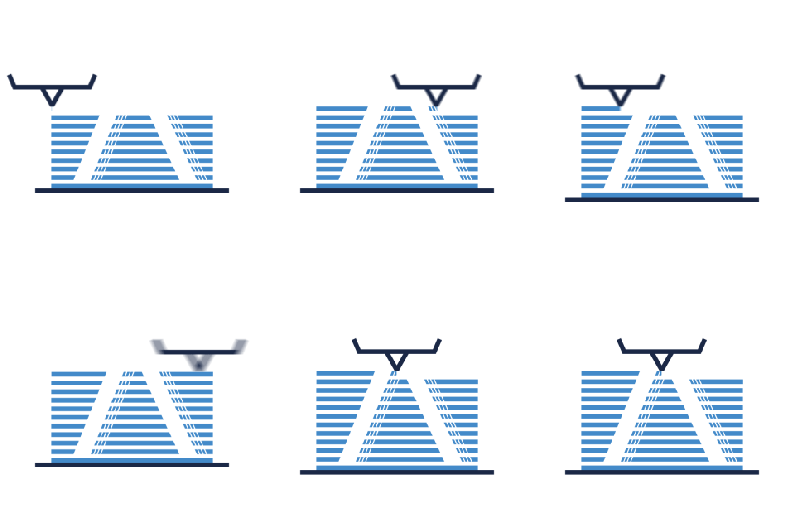
What is ghosting and why it happens
How to fix it
1. Check that the belts are tight enough

If the belts are not tight enough, there will be a chance of ringing, as the printhead will move less precisely. Check your belts first, it is most likely that this issue is coming from these.
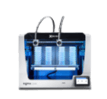
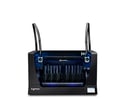
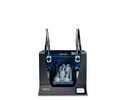
- Click on the picture corresponding to your printer to learn how to adjust the belts:
| How to adjust the tension of the belts | |||
 |
 |
 |
 |
2. Slow down your printjob
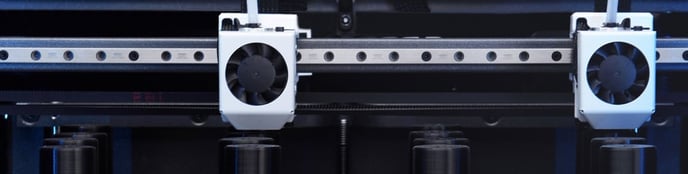
The default settings for our BCN3D filaments have been tailored for good quality and reliable results, and are fully tested by our laboratory. If you are experiencing this issue with default profiles and our own filaments, go to the next point.
If you are using custom BCN3D Stratos settings, you should check your speed settings. Sudden printer movements can generate more vibrations and ghosting on your parts. If you are experiencing ghosting with tight belts, you should lower the printing speed and acceleration settings. Normally, a print speed below 60mm/s works well and prevents this from happening.
3. Check that your printer is stable
If ghosting still persists even after tightening the belts and getting a good configuration, it may be that your printer is not located in the best spot or a printer dampener is missing. Your printer needs to be sitting on a solid and leveled surface, it has to fully support the printer even during fast movements.
Conclusions
- To avoid this issue appears is recommended to check periodically the tension of the belts.
- Setting the printing speed at 60mm/s or fewer can help to avoid this problem. Check which is the recommended print speed for your material to get better results.
- Place your printer over a solid and leveled surface to avoid vibrations that can affect the quality of your printed model.
- If the problem still happens, feel free to get in contact with the support team.